
Accessibility Tip: Accessible Tables
Give every value a clear context.
What and why
Tables help readers compare related information. Clear headers and a simple structure help screen reader users understand each value and make information easier for everyone to scan.
Three small changes
- Name it: Add a descriptive title or caption.
- Label it: Identify header cells using your table tools. Bold text and shading alone do not identify headers for assistive technology.
- Simplify it: Use a regular grid. Avoid merged cells, nested tables, and empty spacer rows or columns.
Accessible Tables Infographic
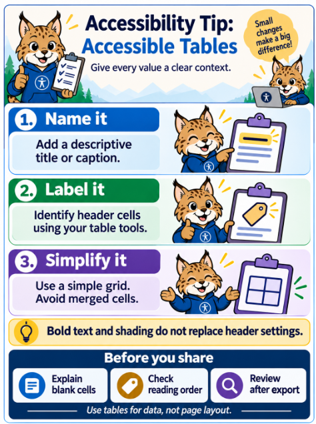
Graphic concept and direction: Rosanna Miiller Salas. Companion illustration created with OpenAI image generation tools.
Before you share
Explain missing values with accurate labels such as “Not applicable” or “Not yet scheduled.” Check reading order, zoom in, and review header settings after copying or exporting. Use tables for data, not page layout.
Try it today
Open one table in your course or document. Add a clear title, identify the header row, and remove one barrier. The companion participant handbook includes steps for Word, Google Docs, and Canvas.
Need support?
Rosanna Miiller Salas: rosanna.miillersalas@ucdenver.edu
SEHD support: sehdhelp@ucdenver.edu