
Alt text helps people who cannot see an image understand its meaning. A useful description shares the information that matters in context, rather than every visible detail.
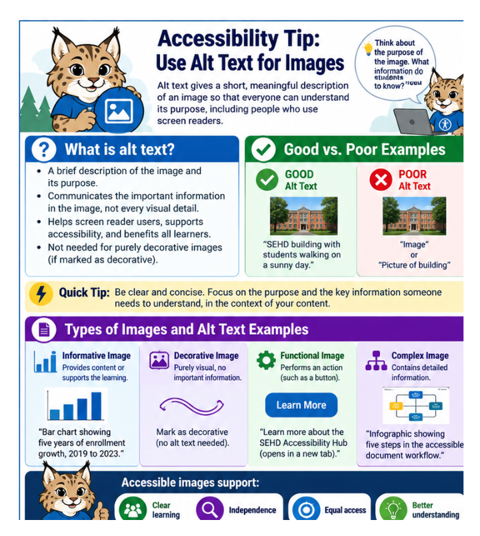
Graphic concept and direction by Rosanna Miiller Salas. Created with OpenAI image generation tools using custom prompts.
Infographic recap: Give informative images meaningful descriptions, mark purely decorative images as decorative, describe the action of functional images, and explain complex images in the surrounding text.
Why?
Alt text gives screen reader users access to information communicated visually. It also helps make course materials easier to understand when images cannot be seen.
Do:
Describe the image’s essential message in its learning context. For charts and diagrams, provide the important data or relationships in nearby text. Mark purely decorative images as decorative.
Avoid:
Avoid vague labels such as “image” or “picture of a building.” Do not repeat adjacent text or describe visual details that do not support the message.
Try it this week!
Choose one meaningful image in a document or Canvas page. Ask what a student would miss without seeing it, then write or revise its alt text.
Let’s Connect!
Interested in exploring digital accessibility, have questions, or want to discuss your ideas? I’m here to help! Reach out to learn more or schedule a consultation.
Contact sehdhelp@ucdenver.edu with your accessibility request or directly Rosanna Miiller Salas at: rosanna.miillersalas@ucdenver.edu
Small changes can create more inclusive digital experiences for everyone.