
A list can look organized but still be difficult to navigate with assistive technology. Built-in Bullets and Numbering tools create meaningful list structure in your documents and Canvas pages.
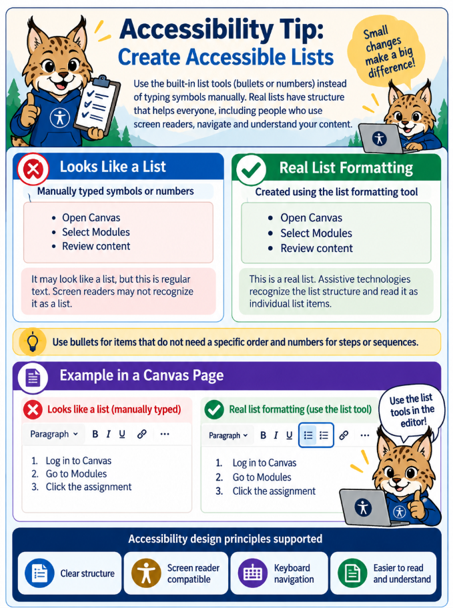
Graphic concept and direction by Rosanna Miiller Salas. Created with OpenAI image generation tools using custom prompts.
Infographic recap:
A manually typed list may look correct, but only the built-in list formatting provides reliable list structure for assistive technology.
Why?
Structured lists help screen reader users recognize lists and their items. Clear organization also makes instructions easier to scan and follow.
Do:
Use built-in Bullets when order does not matter and Numbering when steps must follow a sequence. Use these tools in Word, Google Docs, and the Canvas Rich Content Editor.
Avoid:
Do not manually type bullets or numbers with spaces to imitate a list. Avoid using list formatting simply to create visual indentation.
Try it this week!
Review one document or Canvas page. Find a list that was typed manually and change it to a properly formatted list.
Let’s Connect!
Interested in exploring digital accessibility, have questions, or want to discuss your ideas? I’m here to help! Reach out to learn more or schedule a consultation.
Contact sehdhelp@ucdenver.edu with your accessibility request or directly Rosanna Miiller Salas at: rosanna.miillersalas@ucdenver.edu
Small changes can create more inclusive digital experiences for everyone.